Configure Teams Application Settings
The following describes the Teams application's settings. To access them,
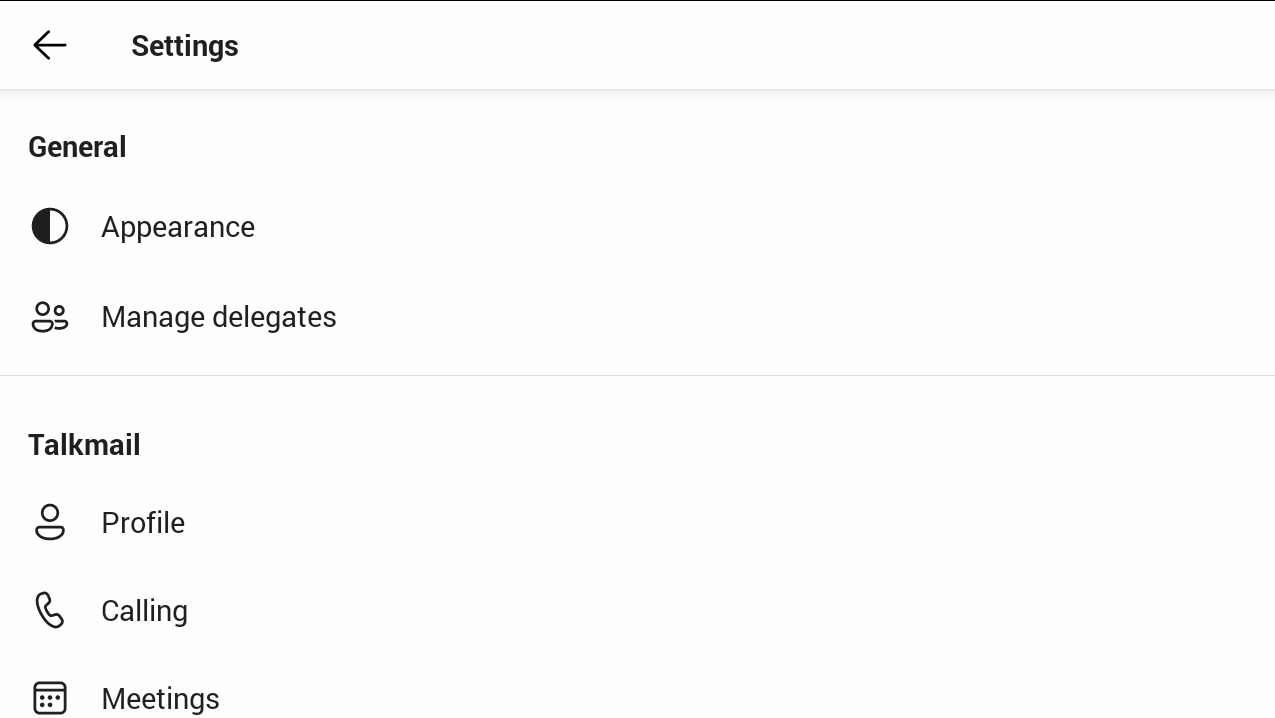
Use this table as reference:
Idle Screen Description
|
Item |
Description |
|||||||||||||||||||||||||||||||||||||||||||||
|---|---|---|---|---|---|---|---|---|---|---|---|---|---|---|---|---|---|---|---|---|---|---|---|---|---|---|---|---|---|---|---|---|---|---|---|---|---|---|---|---|---|---|---|---|---|---|
|
Appearance |
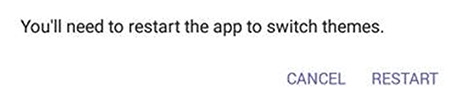
Dark Theme can be enabled to suit user preference (default is Light Theme). To enable Dark Theme:
|
|||||||||||||||||||||||||||||||||||||||||||||
|
Manage Delegates |
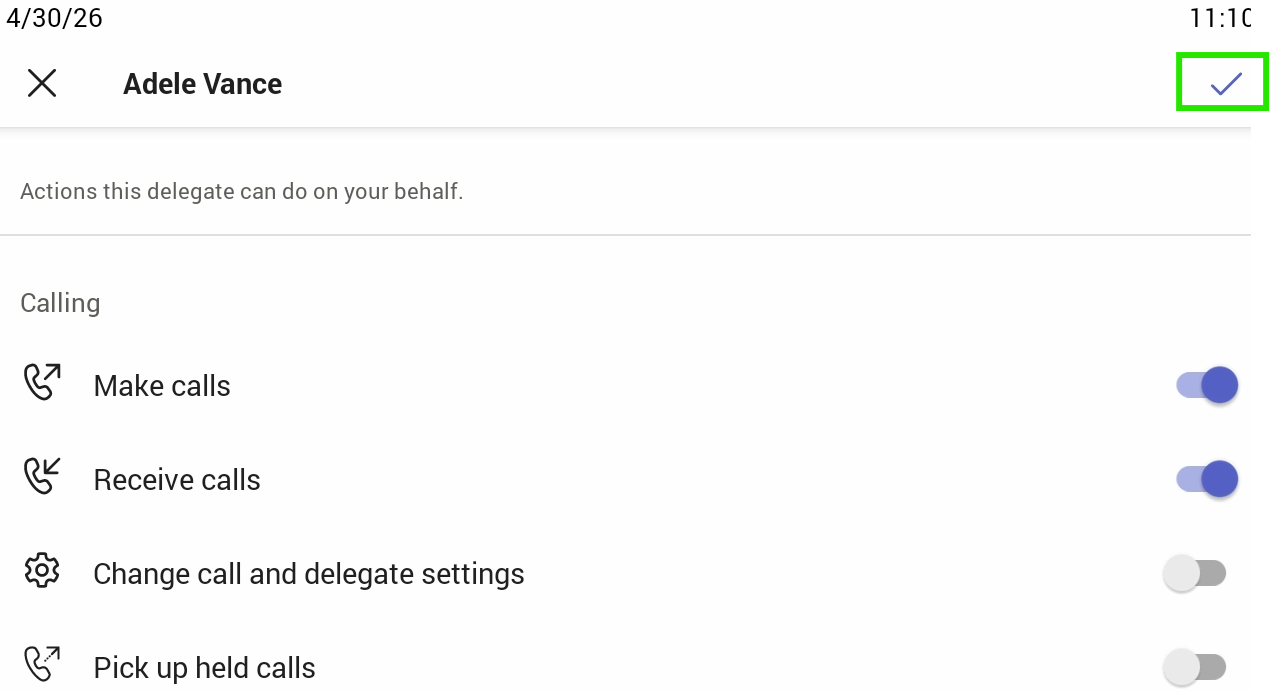
Delegates are users allowed to make and receive calls on the phone on the behalf of the phone owner. Delegates are used in boss-delegate configurations (see Use Boss-Admin). To add a delegate:
|
|||||||||||||||||||||||||||||||||||||||||||||
|
Profile |
Opens the user's email address |
|||||||||||||||||||||||||||||||||||||||||||||
|
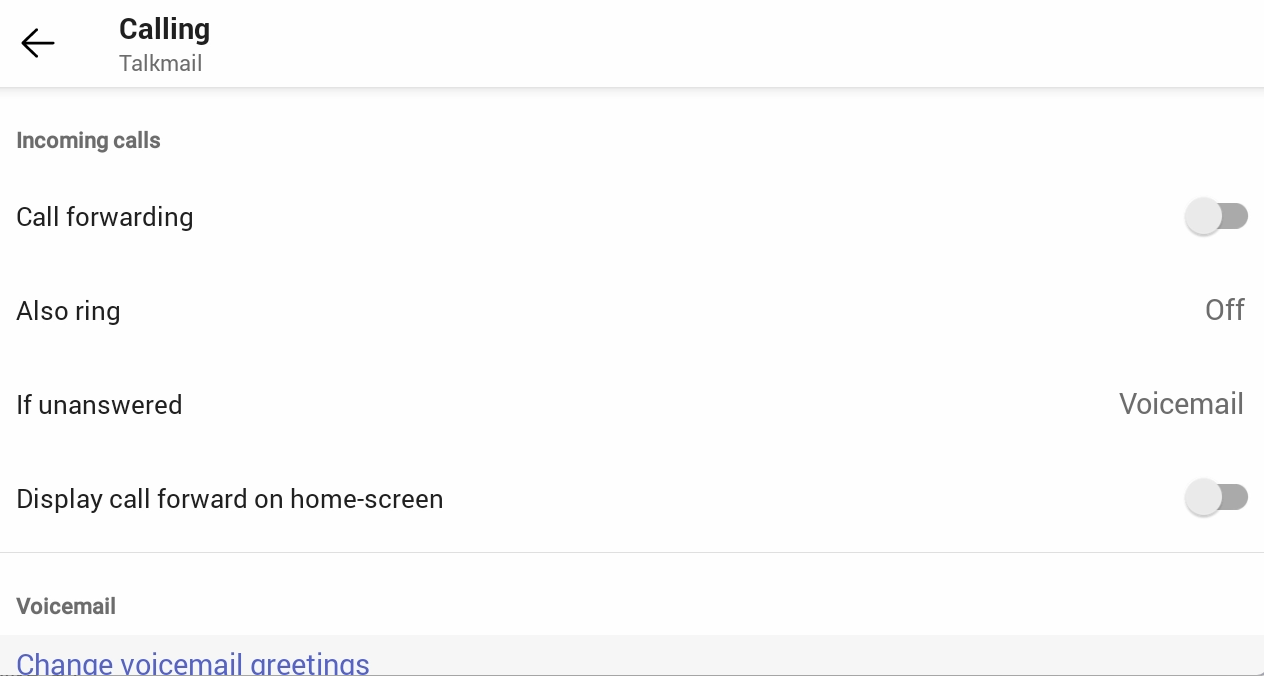
Calling |
Opens the Calls screen.
|
|||||||||||||||||||||||||||||||||||||||||||||
|
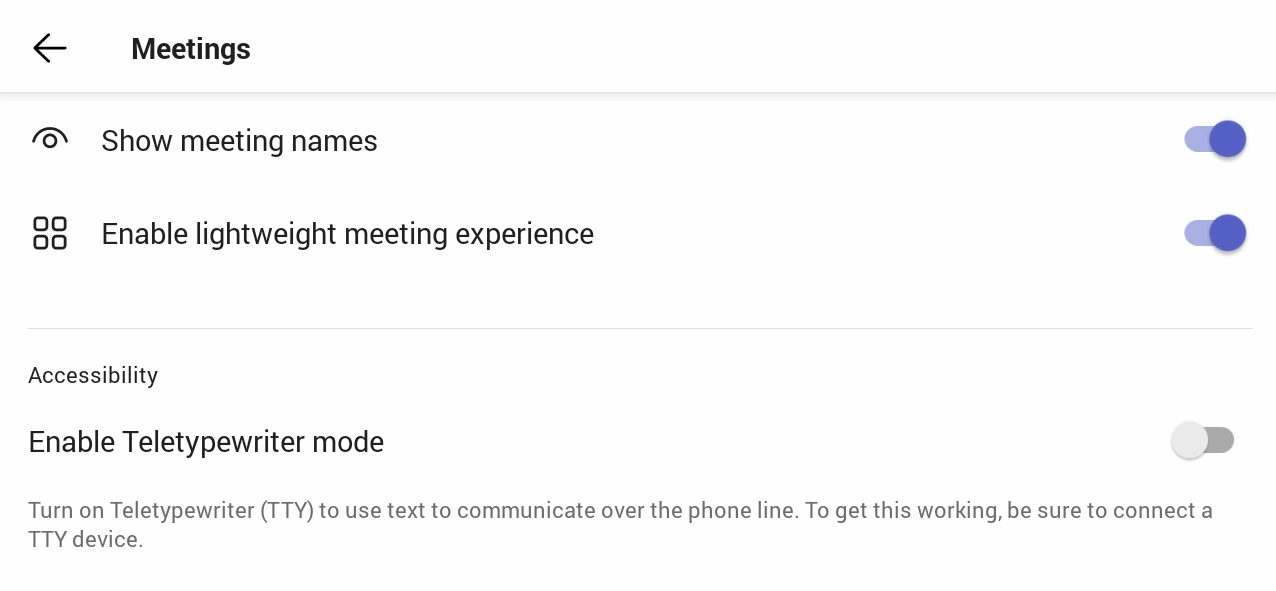
Meetings |
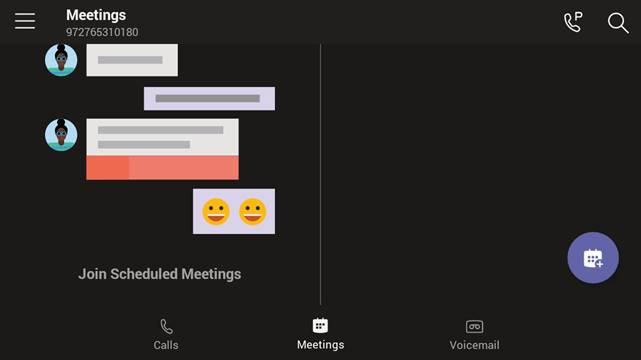
Opens the Meetings screen, from which you can configure meeting settings.
|
|||||||||||||||||||||||||||||||||||||||||||||
|
Home |
Select what the home screen should display by default: Default view, favorites, recent call history, or line keys. |
|||||||||||||||||||||||||||||||||||||||||||||
|
Notifications |
Default: On (enabled). Allows notifications to be displayed. Slide left to switch off (disable); notifications will not be displayed. |
|||||||||||||||||||||||||||||||||||||||||||||
|
What's new |
Links to the 'What's new' page of Microsoft Teams devices. |
|||||||||||||||||||||||||||||||||||||||||||||
|
About |
Opens the About screen of Microsoft Teams. |
|||||||||||||||||||||||||||||||||||||||||||||
|
Sign out |
Lets you sign out of the phone application as one user and optionally sign in again as another user. See Sign Out for detailed information. |
|||||||||||||||||||||||||||||||||||||||||||||
|
Device Settings |
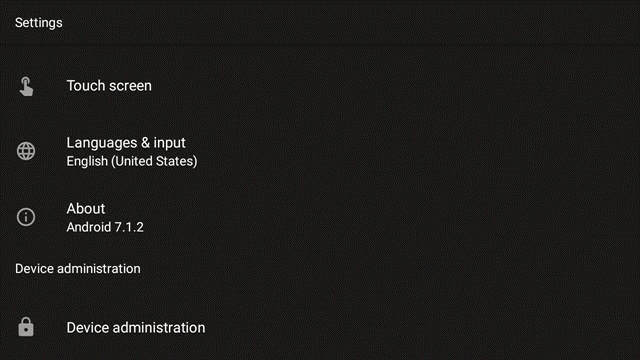
Opens the [Device] Settings screen. See Configure C455HD Device Settings for detailed information. |